
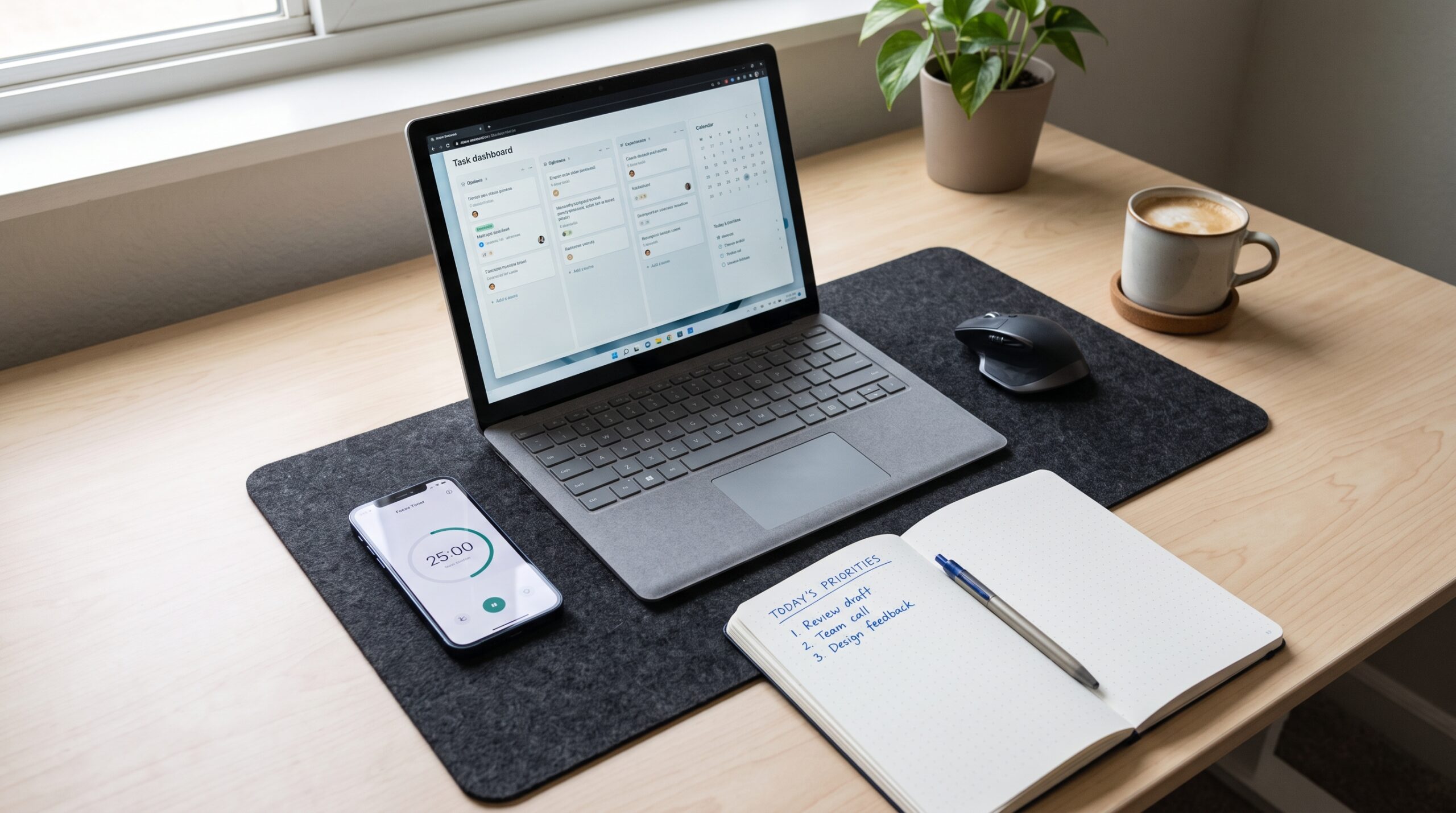
You open your laptop with good intentions. By mid-morning the tabs have multiplied, messages keep interrupting, and the task list you wrote yesterday already feels outdated. The day slips into reaction mode instead of intentional progress. Most of us know the feeling. The right productivity apps can cut through that noise when they match how you actually work. This guide focuses on tools that deliver real improvements in focus, organization, and follow-through rather than adding another layer of complexity.
Why Most Productivity Apps Fail and How to Choose Ones That Stick
The app store is full of promises. Many tools look sleek in screenshots yet create more friction once you try to live with them daily. The ones that last usually do a few things well: they reduce the number of places you have to check, they match your thinking style, and they stay out of the way when you need to focus.
Start by identifying your biggest daily leaks. Is it scattered tasks? Constant context switching? Difficulty protecting deep work time? Poor follow-up on small commitments? Match the tool to the specific problem instead of collecting apps that claim to do everything. A simple system you use consistently beats a sophisticated one you abandon after two weeks.
Task Management Apps That Keep Commitments Visible
A reliable task manager forms the backbone of most solid workflows. Todoist remains a strong choice for many people because it balances speed with enough structure. You can capture tasks in seconds, organize them by project or priority, and set recurring reminders that actually help. Natural language input makes adding deadlines fast. Karma and labels add light motivation without turning the app into a game you resent.
Microsoft To Do or Google Tasks work well if you already live inside those ecosystems. The key is picking one primary place for tasks and sticking to it. Hypothetical example: a marketing coordinator used to keep tasks in email, sticky notes, and three different apps. She moved everything into Todoist and created a daily review habit. Within three weeks the feeling of things slipping through the cracks dropped sharply. She spent less mental energy remembering and more energy executing.
Whatever tool you choose, keep the system light. Too many projects or overly detailed tagging schemes usually collapse under their own weight.
Note-Taking and Knowledge Tools for Clearer Thinking
Notes scatter easily across email, chat, and random files. A dedicated notes app that supports quick capture and later retrieval reduces that friction. Notion offers flexibility for people who like databases and linked pages. You can build simple dashboards, meeting notes, and light project trackers in one place. The learning curve exists, but many users find the payoff worthwhile once templates match their needs.
Obsidian appeals to those who prefer local files and bidirectional linking. It excels at connecting ideas over time. Apple Notes or Google Keep serve well for users who want minimal setup and strong search. The best choice depends on whether you need heavy structure or fast, reliable capture.
Actionable advice: pick one notes tool and move your most-used reference material into it over a week. Create a simple inbox note for quick thoughts and process it during a daily or weekly review. Consistency matters more than perfect organization on day one.
Calendar and Time-Blocking Apps That Protect Focus
Tasks without time attached often stay undone. Google Calendar or Outlook remain the practical foundation for most professionals. The power comes from using them intentionally. Block time for deep work the same way you block meetings. Color-code categories so you can see at a glance whether the week is balanced or overloaded.
Tools like Clockwise or Reclaim.ai help by automatically finding focus time and defending it from meeting creep. Motion combines tasks and calendar in a more automated way for people who want the system to suggest scheduling. Even without extra tools, a simple habit of reviewing the calendar every afternoon and adjusting the next day improves follow-through.
One common pattern: people who schedule their most important work in the first focused block of the day complete more of it. The app simply makes that intention visible and harder to ignore.
Communication and Collaboration Apps That Reduce Noise
Email and chat can consume an entire day if left unmanaged. Slack or Microsoft Teams work best when channels stay focused and notification settings stay strict. Mute channels that do not require real-time attention. Use threads. Set status messages that signal when you are in focus mode.
For asynchronous work, tools like Loom for short video updates or shared documents in Google Workspace or Microsoft 365 often replace long email chains. The goal is fewer context switches. Batching message checks at set times—late morning and late afternoon, for example—protects longer stretches of concentration.
Hypothetical case: a product manager reduced Slack notifications to only direct messages and two critical channels. She checked the rest twice a day. Her deep work blocks lengthened and the quality of her written updates improved because she was no longer composing them in fragmented moments.
Focus and Distraction-Blocking Apps That Enforce Boundaries
Willpower alone rarely wins against infinite feeds and notification badges. Freedom or Cold Turkey can block distracting websites and apps across devices during chosen hours. Forest uses a simple gamified approach that many people find surprisingly effective—grow a virtual tree by staying off the phone. Built-in focus modes on phones and computers now offer solid options without extra software.
Pair these tools with environmental changes. Put the phone in another room during focus blocks. Close unnecessary browser tabs. The combination of software limits and physical friction works better than either approach alone.
Start small. Block only the most tempting sites for sixty-minute sessions at first. Expand once the habit feels normal.
Building a Simple System Instead of an App Collection

The highest-performing setups usually involve a short stack: one task manager, one notes tool, one calendar, and selective use of focus or communication apps. Resist the urge to keep adding. Every new app creates another place to check and another system to maintain.
Review your tools every few months. Drop anything you have not opened in weeks. Adjust settings that create friction. The measure of a good productivity system is whether it reduces mental load and increases the amount of meaningful work you complete, not how many features it offers.
Experiment in short cycles. Try one change for two weeks—new task manager, stricter notification rules, or calendar time-blocking—and evaluate the result honestly. Keep what helps. Discard what does not. Over time the workflow becomes personal and sustainable.
The best productivity apps earn their place by solving specific problems you actually have. They capture tasks reliably, surface the right information at the right time, protect focus, and stay simple enough that you keep using them. Choose tools that fit your existing habits rather than forcing yourself into someone else’s perfect system. Start with the single biggest friction point in your current day. Fix that one. Then move to the next. Steady refinement beats dramatic overhauls that fade after the initial enthusiasm.
FAQ
How many productivity apps should I use at once?
Most people do best with three to five core tools: a task manager, a notes app, a calendar, and optional focus or communication helpers. More than that usually creates maintenance overhead that cancels out the benefits.
What is the best free productivity app for beginners?
Google Calendar combined with Google Tasks or Microsoft To Do covers the essentials at no cost for many users. Apple Notes or Google Keep handle quick capture. Start there before paying for more advanced features.
Should I switch apps if my current ones feel messy?
Only if the mess comes from the tool’s limitations rather than inconsistent use. Clean up the existing system first—archive old projects, simplify labels, set clearer rules. Switching without fixing habits often recreates the same disorder in a new interface.
How do I make productivity apps work across my phone and computer?
Choose tools with strong cross-device sync and use the same account everywhere. Enable notifications only for truly time-sensitive items. Design your mobile use for quick capture and review rather than deep work, which is usually better on a larger screen.
Can productivity apps help with procrastination?
They help indirectly by reducing friction and making the next action obvious. Pair them with short timed sessions and clear priorities. The apps support the behavior; they do not replace the decision to start.
Leave a Reply